Sodola SL-8T2XS-WEB Review & Setup Guide
In the video below, we show how to install Ollama and Gemma 4
After all these years, computers should be on 2.5G, yet managed 2.5G switches have been expensive to find
When I say managed, I’m talking about being able to configure VLANs on the switch as it’s essential to isolate Smart Home/IOT traffic from the rest of your network as security for them tends to be poor
Now brands like Sodola have been making inroads into the budget end of the market
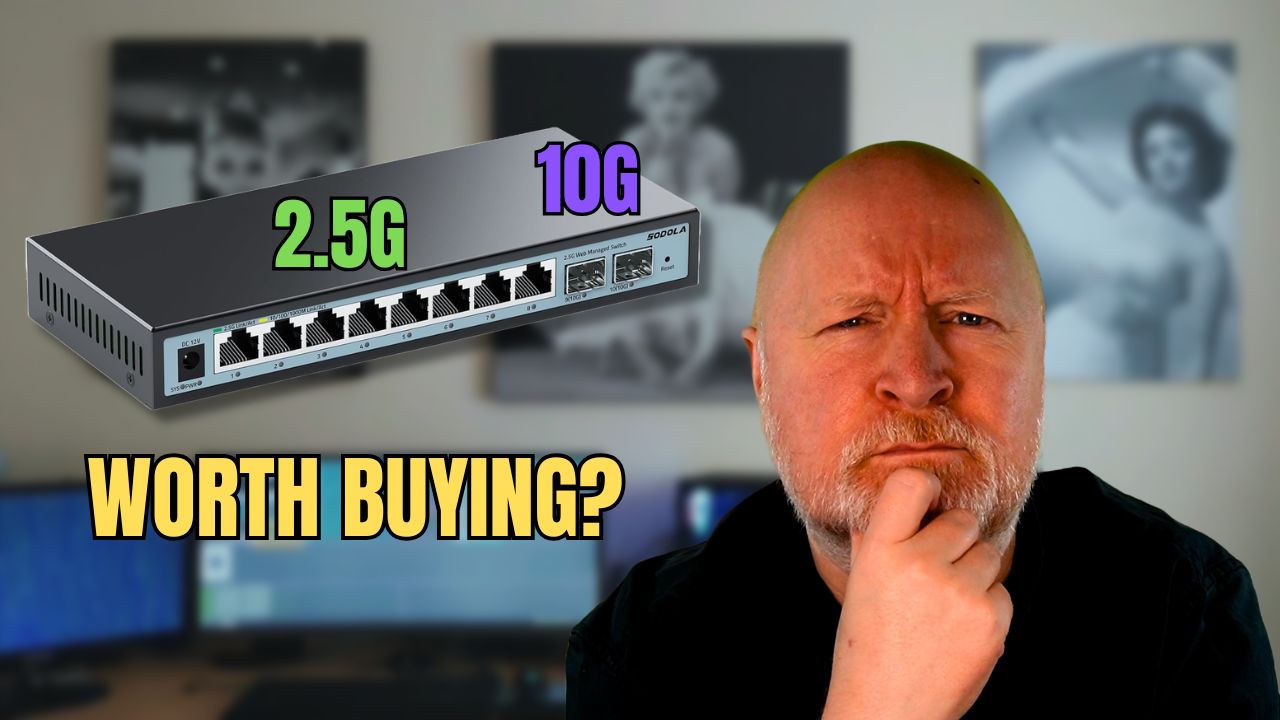
So I bought one of their 8x 2.5G port switches which also has 2 x 10G SFP+ ports to test out
But what features do you get with this switch and how do you configure it?
Management:
Now this switch doesn’t have a console port, so you’ll need to connect to it via a web browser
For new switches I typically remotely connect to a laptop through Wi-Fi and plug that laptop’s Ethernet port to the switch to make my life easier
By default, these switches have a static IP address of 192.168.2.1 so whatever you plug into it will need a IP address in the range of
192.168.2.2 to 192.168.2.25
And a subnet mask of
255.255.255.0
Then you’ll want to open up a web browser and point it to
https://192.168.2.1
Now for me nothing happened, which is concerning
Even running Wireshark this switch wasn’t talking on the network
So I reset the switch back to its factory settings by pressing a paper clip against the reset button in the front and holding it for around 10 seconds
Once all the LEDs lit up, I released the paper clip and shortly after that I could access the switch
There were no signs of tampering when I took this switch out of the box but this does seem odd to me
In any event I was now able to connect to the switch
There is a choice of English or Chinese although if you prefer English, I’ve found it can show Chinese language and then replace that with English or show you both at the same time
Now that doesn’t seem like an ideal method of language translation to me, but in the grand scheme of things, this is a cheap switch and it’s functional
At this stage you’ll want to login with the default name and password of
admin/admin
One warning I’ll give you straight away is make your changes and apply them quickly
This switch has a built-in idle timeout and it is short and as far as I can tell it can’t be changed
So don’t build up multiple changes and then apply them as you’ll likely find you’ll have been logged out and you’ll have to start all over again
System Functions:
The first section you land on is called system functions, which basically covers configuration options for the switch itself
You’ll first see some summary information about the switch and here you can change it’s name if you want
One thing I’ve noticed incidentally is you have to apply changes for them to take affect, but later in the video you’ll see something slightly different going on
Now the switch supports both IPv4 and IPv6 and each has their own page to make changes to that protocol
You can enable DHCP if you like but out of the box it uses static IP settings
Personally I prefer static IP addressing because you could lose access to the switch if you have a DHCP server problem
Only one user account for management is possible and it never pays to keep the default user settings
What I like is you can change the default user name, but it feels a bit confusing
If you select the User page, you’ll want to enter a new username, the existing user password, then add and confirm the new user password
After you click Apply though you’ll be logged out to force you to login with the new account
In small networks, you don’t normally implement redundant links for switching because they don’t have redundant switches for cost reasons
However, this switch does support Loop Protection and that has its own page
By default it’s disabled, but you can enable this on a per-port basis
The idea is, if a known MAC address appears on another port, it usually suggests there’s a bridging loop or MAC spoofing going on and if this feature is enabled on that port, the port may be locked down as a result
The Spanning Tree Protocol is another feature you’ll find even on budget managed switches to protect against bridging loops
This too has its own configuration page and as I usually find it’s disabled by default
If you do want to use it you’ll have to Enable it, select between traditional STP or Rapid STP and then decide which port or ports you want to enable it on
Which of these protocols you select largely depends on what your other switch or switches use
But RSTP is backward compatible with STP and is preferred these days
The remaining Reboot and Restore page lets you restart the switch or restore it back to factory default settings
Bear in mind, neither of these options give you a warning or asks for confirmation
Advanced Settings:
Most of your time will likely be spent in the Advanced Settings section changing port or VLAN settings, although I use the word VLAN loosely as you’ll see
Quite frankly, the port settings page on most switches tends to be used for shutting unused ports for security reasons and opening them back up when needed
Although you can hard code a port’s speed and duplex settings, these days they are best left on auto negotiation. Those sort of of settings go back to the early days of 10Mb and 100Mb links
Interestingly this switch has flow control enabled by default, but if you find it causing problems you can disable it on a per port basis
Bear in mind you can have ports on a lot of different speeds on this switch, ranging from 10Mb to 10G and flow control can help in some ways with an imbalance
But both endpoints have to support flow control for this to work and so too do any switches between them
Now this is where you might notice something different as I alluded to earlier
This is one of a few pages which also have a Save button so after you’ve made a change, click apply and then click save
Whether it’s security or probably troubleshooting, port mirroring can be useful and the switch does have a page for configuring this
Against Port Mirroring you select the destination port where traffic will be forwarded to
For Mirroring Port you select the source port or ports where traffic is being mirrored from
Being able to mirror multiple ports can be quite useful and you can also choose to mirror ingress only, egress only or both
Link aggregation has its own configuration page, and this is used to bundle multiple links together for redundancy or just increased bandwidth
Typically on a small switch like this you might connect a server to two ports then bundle them together to give the server maybe 2G of bandwidth or 5G depending on the speed. But that’s the overall bandwidth. Each conversation or flow will be limited to using one switch port so the reality is maybe two separate connections at 1G and not one at 2G
Logically you can create up to 16 bundles, but there aren’t enough ports on this switch to do that
The default setting is Static meaning there is no LAG, so to create a bundle you’ll either select LAG, which is to create a static bundle, or LACP to create a dynamic bundle using the Link Aggregation Control Protocol
Whichever method you use you’ll want to assign the relevant ports to the same aggregation group and make sure the device at the other end is using the same method
LACP does have one extra setting in this switch and that’s the LACP timeout. Short means 3 seconds and long 90 seconds, and this needs to match on both sides
There is also an LACP system priority you can set. Unless there’s a particular need for one switch to be the decider you can let them agree amongst themselves, otherwise the lower this number is the better
As an aside, only switches that support MLAG or multi-chassis LAG allow you to create redundant aggregation links and it’s usually only found in higher end Enterprise grade switches
In the case of this type of switch, a server with two links for instance would need them both connecting to this switch to benefit from LAG
Now at this point things can get confusing when it comes to configuring VLANs because this switch is very different compared to the traditional concept of VLAN management
The switch has two configuration pages, one is Port VLAN, the other Tagged VLAN
The port VLAN page is where I’d consider access ports are configured, the tagged VLAN page is for trunk ports
I’ll start with tagged VLANs first as to me it makes more sense if you’re coming from a networking background or just used to other vendor switches
Trunk ports in the networking realm are used when the port will carry traffic belonging to multiple VLANs
These can be switch to switch as well as switch to server and to keep the traffic separated, each VLAN is assigned an ID, usually something from 1 to 4094
This switch doesn’t really use a typical 802.1Q design, instead you’ll find you can assign Bridge IDs ranging from 0 to 63
Let’s say you connect port 5 of this Sodola switch to an 802.1Q supporting switch and that’s using VLANs 100, 200 and 300 that you want to use on this switch as well
In the tagged VLAN page, you’d select a bridge port from the list and configure it to translate between a VLAN on the other switch and a bridge ID on this switch
In this example we could do the following
Enable BP_17, Port 5, Bridge ID 1, External VLAN 100
Enable BP_18, Port 5, Bridge ID 2, External VLAN 200
Enable BP_19, Port 5, Bridge ID 3, External VLAN 300
This is another page requiring you to click apply as well as save by the way
NOTE: This is one of those pages where it would be easy to configure lots of lines, then click apply only to find you’ve been logged out and your choices lost. So I think configuring one line at a time is a safer decision
Not many networks use QinQ, so the default setting of single tagging (SglTag) should be fine for most
Now although there is an Internal VLAN option, it remains greyed out on this switch because the switch uses bridge IDs instead so I suspect its from code intended for other switches
Basically what those settings I’ve defined mean are we’ve turned port 5 into a trunk port that supports bridge ID 1, 2 and 3 which correspond to VLANs 100, 200 and 300 respectively
What you may notice though, is although the external VLAN ranges from 1 to 4094, you’re limited to a bridge ID of 0 to 63. So unless you’re willing to intermix VLANs, this switch is limited to supporting 64 VLANs
Personally I’d prefer to avoid bridge ID 0
In the 802.1Q world, VLAN 1 should be reserved for system use only and so we’re advised to use anything but VLAN 1 for our own use
Bridge ID 0 looks to be similar but you can only connect to the switch’s management interface from bridge ID 0
And you can’t assign the management interface of this switch to another bridge ID so if you want remote access to the switch you’ll need to somehow connect into Bridge ID 0 remotely
Now I did try mapping a tagged VLAN to bridge ID 0, as the page allows you to do that, but it knocked my firewall off the network as it led to problems for CARP
I’m still trying to find the cause let alone a solution, but I’ve found if you assign an untagged VLAN to the trunk on the upstream switch and set that as the PVID, you will get a mapping to bridge ID 0 if you leave the physical port on the Sodola side on a default setting of bridge ID 0
Now when it comes to access ports i.e. ports you plug a typical endpoint into that don’t support VLANs, you’ll need to make configuration changes on the port VLAN page
This is much simpler because you enter the bridge ID corresponding to what you configured in the tag VLAN page
So if for instance I wanted a computer on port 2 to be part of VLAN 100, I’d enter bridge ID 1
The Discard option is a security feature mainly to block devices from tagging packets when they shouldn’t
So if this is an access port and the computer should not be VLAN aware, it would make sense to enable the option to discard tagged traffic
Now, if that all went over your head and you only want to use this single switch then you can ignore the Tagged VLAN page
Instead, on the Port VLAN page you could do something like this
You could assign ports 2 and 3 to bridge ID 5 for instance and those two computers could talk to each other
You could assign ports 6 and 7 to bridge ID 10 and those two computers could talk to each other
But what’s important is the computer on port 2 can’t talk to the one on port 6 and vice versa because they belong to different bridge IDs
Regardless, any changes you make on this page need you to click apply and save
Now if you have computers on your network using multicasting then there is some basic support for that on the IGMP Snooping page
First you’ll need to enable it by clicking the IGMP Configuration button and enabling the IGMP Switch option
This allows the switch to listen in on the IGMP traffic that multicast typically involves and then it can learn which ports to send multicast traffic to rather than the default option which is to send it to every port in the bridge ID
The Fast Leave option was a later addition to multicasting allowing devices to immediately leave a multicast group rather than relying on polling, so it’s useful to enable this
The IGMP Snooping Querier option is for more sophisticated multicast networks when you want to control a dedicated device handling all of the IGMP queries
One you click Confirm the changes take affect
Once this is enabled you’ll also be able to add and delete static multicast groups if you like
Do remember to click save though to save the configuration
The last page in this section is one for Storm Control
If there’s an attacker on the network or even a device with a rogue network card for instance, this is a feature that can prevent a device overwhelming the network with broadcast, multicast and unknown unicast traffic
It allows you to impose a switch wide limit on how much of that traffic can be accepted
Unfortunately this switch doesn’t give you a per port option for Storm Control and you can’t set different settings for these different traffic types
You’ll need to enable it, set a limit in Mbps then click apply
What that limit is depends on your network. You need to monitor it for a while to find the baseline for these types of traffic and set a value slightly above that level
Set it too low though and some computers may have problems. Too high and it doesn’t achieve anything
WARNING: If you disable the feature it reverts the storm control rate down to 0, so if you ever re-enable it make sure to set the correct limit you want or you could run into issues
Status Information:
For monitoring we have the Status Information section
The Port Statistics pages give you the typical information about if ports are active or not, their bandwidth, packet counts as well as errors
The Static MAC page can be useful as it allows you to add static entries into the switches MAC table
This can be quite useful because if a MAC address is learned by a switch but the device doesn’t send much traffic, after a while the switch removes it from its MAC table
If another computer then tries to send traffic to that MAC address the switch doesn’t know which port to send it to so it floods it out all ports
Adding a static entry prevents that flooding behaviour is useful because it stops other devices having to waste CPU cycles checking traffic that isn’t meant for them
But it’s also good for security because other devices could be blocked from spoofing a known MAC address
And since traffic isn’t flooded out every port, traffic only goes where it genuinely should
Do remember to save the configuration though if you add or removed any entries
The Dynamic MAC page in contrast shows MAC addresses the switch has learned, what bridge port this was on and bridge ID it was in, together with how long is left before it will time out if not refreshed
This is extremely useful, particularly when you need to troubleshoot issues and have to track down which port a device is on
System Tools:
The last section is System Tools
The configuration page allows you to download the existing configuration by clicking Download, choosing a location, entering a file name then clicking Save
NOTE: Some web browsers may block the file from being downloaded and you’ll need to release this for it to be actually saved
If you want to upload a configuration you’ll want to click Select File, navigate to and select the configuration file you want then select Open
To complete the process you’ll need to click the Upload button and then reboot the switch for the changes to take affect
Similar to the Configuration page is the Firmware page
It has the same download and upload process, however, I didn’t find any firmware for this switch
https://www.sodola-network.com/pages/firmware-updated-for-sodola-managed-switch
At the time of recording this switch is on version 1.0.0.6 and the support team have said there is no newer firmware available
Summary:
Now, I’ve yet to fully put this switch through its paces but I thought a video about its configuration would be useful given how this doesn’t use typical 802.1Q VLANs
And there are other channels out that that test things like port throughput and power consumption
What appeals to me about this switch is it has 2x 10G SFP+ ports and 8x 2.5G ports, so in theory it should fit in nicely with my goal to upgrade to 2.5G
It is a fanless switch, so 10G fibre will be better as it generates less heat, and also draws less power
And a 10G uplink will be ideal for those computers I have which now support 2.5G
And as Wi-Fi and Internet links creep above 1G, this seems like a cost effective way for me to test out this brand of switches
Sharing is caring!